
Web dashboard
The dashboard is a React app served by Vite at http://localhost:5173 (or by nginx in the Docker stacks). It has four pages and a 404 page. This guide covers each one, the text you see and what happens behind it.
flowchart TB
  home["Home<br/>enter owner/repo"] --> page["Repository page<br/>live progress"]
  dashboard["Dashboard<br/>all repositories"] --> page
  dashboard --> delete["Delete"]
  page --> outcome{"Run ends"}
  outcome -- "completed or<br/>partially indexed" --> search["Search<br/>with suggestions and filters"]
  outcome -- "completed or<br/>partially indexed" --> browse["Browse definitions"]
  outcome -- "failed, reason shown" --> reprocess["Reprocess"]
  reprocess --> page
  search --> viewer["File viewer<br/>at the exact lines"]
  browse --> viewer
search --> github["source ↗ opens the result<br/>at the indexed commit on its host"]The header shows the CodeSage name and two links, Home and Dashboard. The browser tab title follows the page: CodeSage - AI-Powered Code Discovery, CodeSage - Dashboard, CodeSage - Repository <id> and CodeSage - File in repository <id>.
Pages at a glance
Section titled “Pages at a glance”| Page | Path | What you can do |
|---|---|---|
| Home | / |
Add a GitHub repository |
| Repository | /repository/:id |
Watch progress, search, browse definitions, reprocess, delete |
| File viewer | /repository/:id/file?path=…&line=…&end=… |
Read an indexed file with the target lines highlighted |
| Dashboard | /dashboard |
See all repositories and delete one |
| Not found | any other path | “Page not found”, with a Go home button |
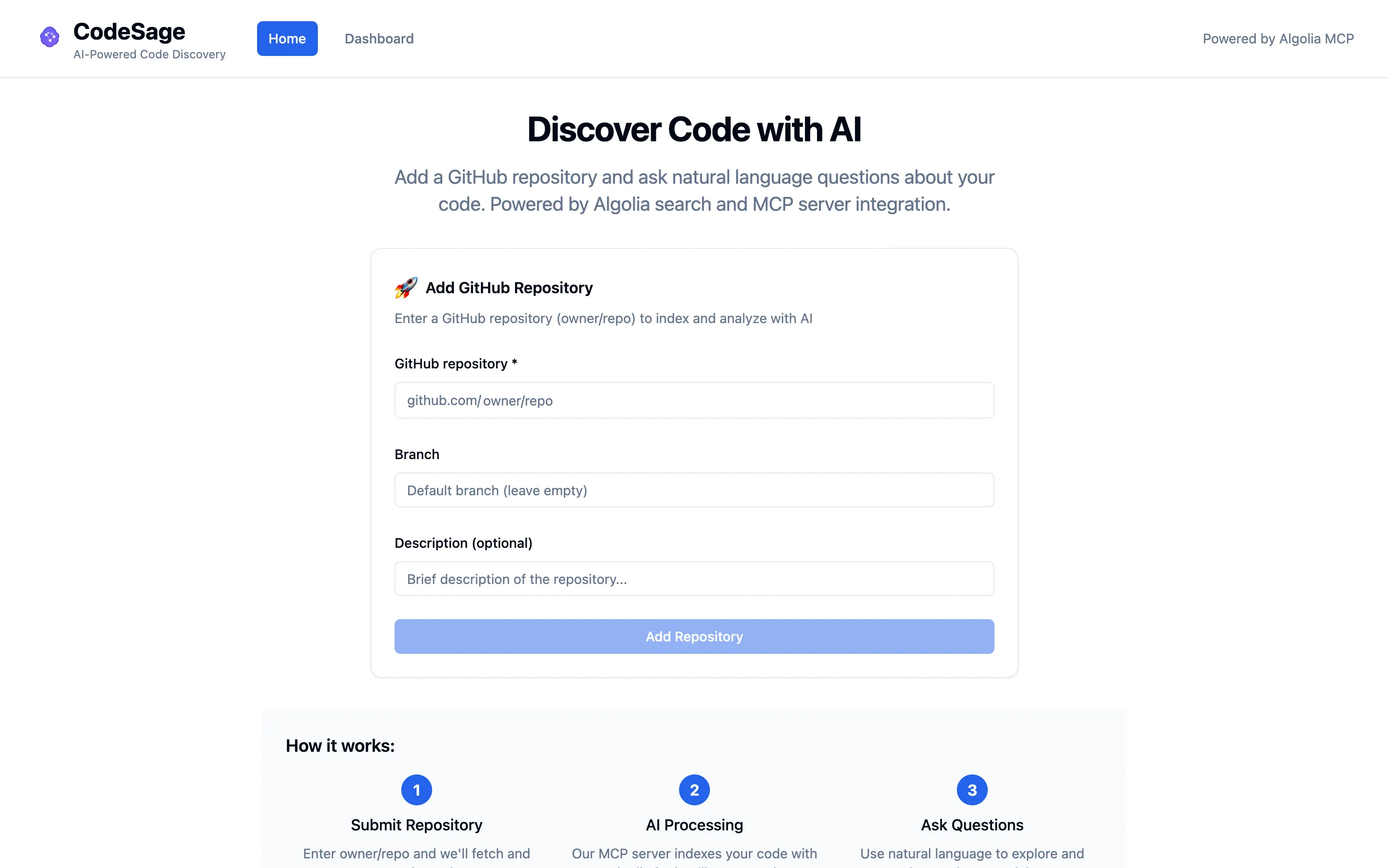
Home shows the heading “Discover Code with AI”, the Add GitHub Repository form, a three-step “How it works” strip (Submit Repository, AI Processing, Ask Questions) and two feature cards (Smart Search and Claude Desktop).
Adding a repository
Section titled “Adding a repository”The form has three fields.
| Field | Label | Required | Notes |
|---|---|---|---|
| Repository | GitHub repository *, with a fixed github.com/ prefix |
yes | Type owner/repo, or paste a GitHub URL. |
| Branch | Branch (placeholder Default branch (leave empty)) |
no | Empty means the repository’s default branch. |
| Description | Description (optional) |
no | A note shown on the repository page and the dashboard card. |
How the repository field reads what you type:
- The leading
https://,http://,www.andgithub.com/, a trailing/and a trailing.gitare removed.https://github.com/pmndrs/zustand.gitbecomespmndrs/zustand. - What is left must be two parts joined by
/, each made of letters, digits,_,.or-. If not, the field showsEnter owner/repo, for example facebook/reactand the button stays disabled. - A valid value shows
Repository: owner/repounder the field. - A URL ending in
/tree/<branch>doesn’t pass this check. Use the Branch field. URLs of other hosts (GitLab, Bitbucket) don’t pass either, because the dashboard takes github.com only. To add those, ask Claude to calladd_repository(Other git hosts). - Empty Branch and Description fields are not sent.
Press Add Repository. While the server checks GitHub the button reads Checking repository…. The server checks the repository and branch on GitHub for up to 10 seconds, with one attempt and no retries, before it creates anything. On success you see a green toast, Repository added with Processing has started. Progress appears on this page., and land on the repository page. The repository exists with status pending and moves to processing almost at once.
When the server refuses a repository
Section titled “When the server refuses a repository”Every refusal appears in red under the repository field. The page stays on Home, nothing is created and your input is kept. Editing the field clears the message. Only a success shows a toast.
| You see | Status | Cause |
|---|---|---|
Enter owner/repo, for example facebook/react |
none (checked in the browser) | The text isn’t owner/repo. No request is sent. |
Invalid branch name |
422 | The branch contains a .. segment, a NUL character, or starts with -. |
String should have at most 100 characters |
422 | The branch is longer than 100 characters. |
GitHub repository owner/repo was not found. Check the URL; if it's private, the server's GITHUB_TOKEN needs access. |
422 | The repository doesn’t exist, or it’s private and the server’s token can’t read it. |
GitHub denied access to owner/repo. |
422 | GitHub answered 403 for the repository or branch. |
Branch 'x' does not exist in owner/repo. |
422 | The branch is missing. |
owner/repo is empty; there is nothing to index. |
422 | The repository has no content. |
owner/repo has already been added. plus an Open it link |
409 | The same URL already exists, in any letter case. The link opens the existing repository. |
GitHub's API rate limit was reached; try again in about N minutes. |
503 | GitHub is rate-limiting the server. The response carries Retry-After. |
Search indexing is not configured on the server (Algolia credentials are missing). |
503 | ALGOLIA_APP_ID or ALGOLIA_ADMIN_API_KEY is unset. |
GitHub rejected the server's GITHUB_TOKEN; check the token configured on the CodeSage server. |
502 | The token is invalid. |
Could not reach GitHub; try again. |
502 | GitHub is down, unreachable, or answered an unexpected status. |
GitHub did not respond in time; try again. |
504 | GitHub took longer than the 10 s check. |
Invalid or missing API key. Set VITE_CODESAGE_API_KEY to the key the server expects. |
401 | The key in the bundle doesn’t match the backend’s. A red API key rejected toast also appears. |
Too many requests. Please wait a moment and try again. |
429 | More than 100 creates per minute from one address. |
Server error (request <id>). Please try again later. |
500 | An unexpected backend error. The ID matches the backend log. |
Cannot reach the CodeSage server. Check that the backend is running. |
none | The browser got no answer. |
The server took too long to respond. Try again. |
none | No answer within the dashboard’s 30 s request timeout. |
The backend’s own text, or Request failed (403). |
403 | The request guard refused the Host or Origin. |
The same checks and wording apply to POST /api/v1/repositories/ (REST API).
Repository page
Section titled “Repository page”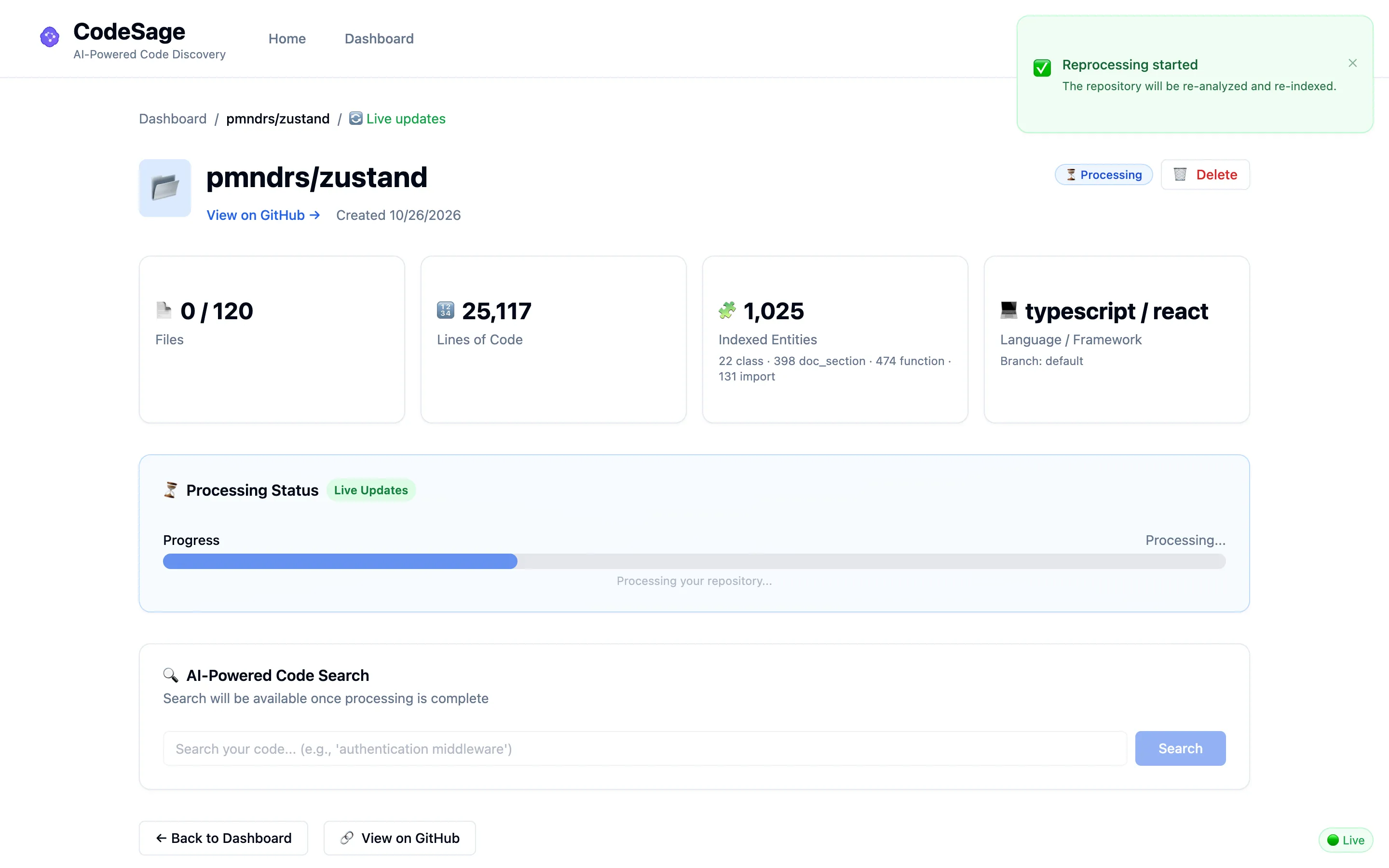
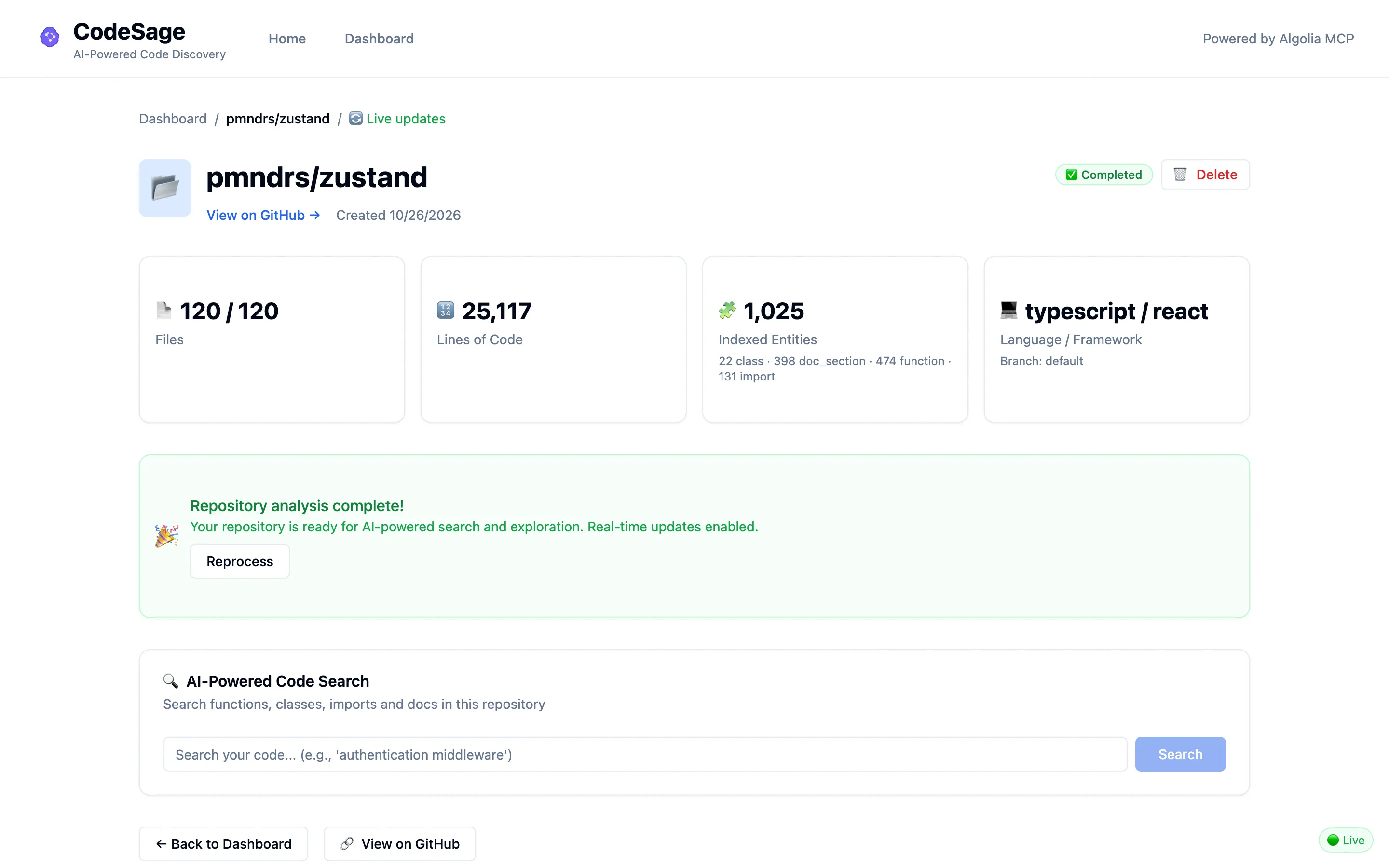
The page for /repository/:id shows, from top to bottom:
- A breadcrumb,
Dashboard / owner/repo. While the live connection is up it addsLive updates. - The header: repository name, description, a source link,
Created <date>,Indexed at <sha>(the first 7 characters of the commit the index was built from; hover for the full SHA), a status badge and a Delete button. The source link reads View on GitHub for github.com and View source for any other host.Indexed atis missing until a run has fetched the files, and for repositories indexed before commits were recorded. - Four stat cards.
- A status card, which depends on the state (see below).
- The search box, with its language and kind filters.
- The Browse definitions card, once the repository is
completed. - Back to Dashboard and the source link again.
Stat cards
Section titled “Stat cards”| Card | Shows |
|---|---|
| Files | processed / total files |
| Lines of Code | Total lines in the stored files |
| Indexed Entities | Entity count with a breakdown such as 120 function · 14 class · 33 import. Shows a dash if the stats can’t be loaded. |
| Language / Framework | For example python / fastapi, or Unknown; below it Branch: <name> or Branch: default |
Status badge and card colors
Section titled “Status badge and card colors”The badge is one of Pending (gray), Processing (blue), Completed (green) and Failed (red).
| State | Card | Text |
|---|---|---|
pending or processing |
Blue, “Processing Status” | A progress bar with a percentage and N / M files. Until the first batch is stored the bar is indeterminate. A Live Updates pill shows while the WebSocket is connected. |
completed |
Green | Repository analysis complete! and Your repository is ready for AI-powered search and exploration. with a Reprocess button |
completed with a note |
Amber | Repository partially indexed followed by the stored error_message, such as Partially indexed: 12 files over the 1000-file or 100 MB limit were skipped, with Reprocess |
failed |
Red | Processing failed, There was an error processing this repository. You can try reprocessing it., the reason from error_message, and Reprocess |
Live progress
Section titled “Live progress”Progress reaches the page two ways, and both run at once.
- WebSocket. The page subscribes to its repository over
/ws. The backend pushes arepository_statusframe at the start of a run, after every batch of 200 files and at the end. The page patches the counts into the repository it holds, so the progress bar moves with each frame, and refetches the full data when the status changes. - Polling. While the repository is
pendingorprocessing, the page also reloads the repository and its stats every 3 seconds, or every 15 seconds while the WebSocket is connected, since the frames already arrive then. Polling stops when the status iscompletedorfailed, or the repository is gone.
If the WebSocket is unavailable, polling still keeps the page current. When the socket connects again, any request that failed in the meantime is retried. See the connection indicator.
Search
Section titled “Search”The search card is titled AI-Powered Code Search. The text under the title depends on the status:
| Status | Text | Search box |
|---|---|---|
completed |
Search functions, classes, imports and docs in this repository |
Enabled |
failed |
Indexing failed, so search isn't available. Reprocess the repository to try again. |
Disabled |
pending, processing |
Search will be available once processing is complete |
Disabled |
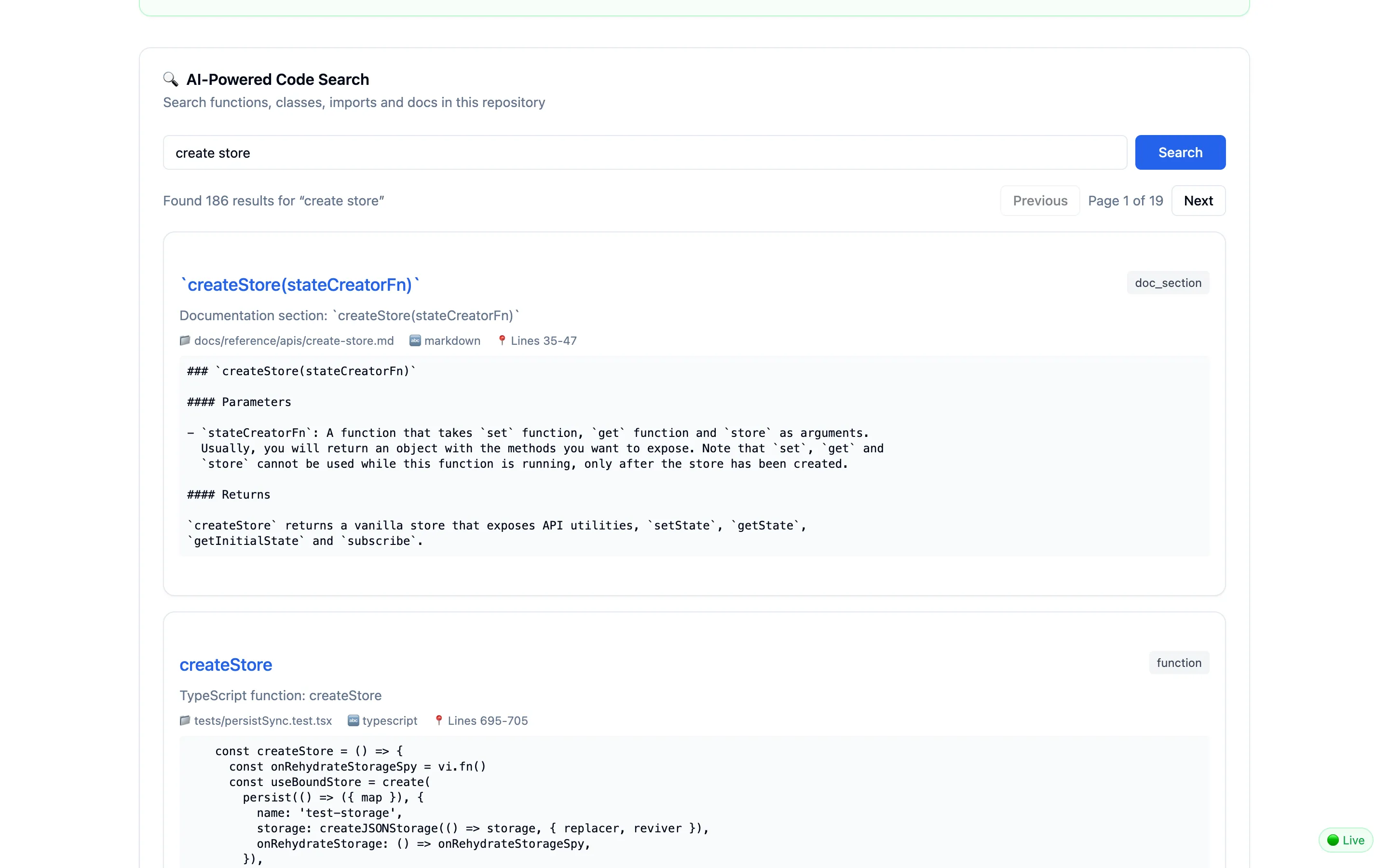
How search behaves:
- Query. Type in the box (placeholder
Search your code... (e.g., 'authentication middleware')) and press Search. The button is disabled for an empty query, and the box takes at most 170 characters, which always fits the server’s 512-byte limit. Search is limited to this repository. - Filters. Under the box, Filter by language offers
All languagesand each language that has indexed entities, and Filter by kind offersAll kinds,Functions,Classes and types,Doc sections,Terraform blocksandImports. Changing either one re-runs the current search from its first page. Imports only appear when the kind isImports. - Plain words work. If nothing matches every word, Algolia drops the words that miss, ignores stop words and plurals and returns the best partial matches.
- Suggestions. After you type at least 3 characters and pause for 300 ms, up to 5 entity names appear in a list under the box. Click one, or move through the list with the Up and Down arrow keys and press Enter, to run that search. Escape closes the list, and so does searching or leaving the box. Suggestions come from the same Algolia index; if the request fails, no list appears.
- Results. The dashboard asks for 10 results per page. The summary reads
Found N results for "query". When there is more than one page you get Previous,Page X of Yand Next. A failed page change keeps the current results. - Each result. The entity name opens the file viewer at the result’s lines. A small source ↗ link after it opens the exact lines on the host at the indexed commit, for example
https://github.com/owner/repo/blob/<sha>/src/app.py#L10-L25; it is left out when the host has no known link format. Then come a type badge (function,class,import,doc_sectionorterraform_block), a description, the file path, the language,Lines 10-25, the signature (when the snippet doesn’t already start with it) and a snippet. - No results.
No results foundandTry different keywords or a more specific query. - Loading.
Searching your codebase... - Errors. A red
Connection Errorbox means the browser couldn’t reach the server. An orangeSearch failedbox carries a tool message, such asSearch is unavailable; try again later.An orangeService Errorbox carries an HTTP error message. The ✕ button (labelled “Dismiss error”) closes it.
Browse definitions
Section titled “Browse definitions”Once the repository is completed, a Browse definitions card under the search lists every indexed definition, read from SQLite through the list_definitions tool, in file and line order.
- Filters. A name box (placeholder
Filter by name...) matches any part of the name, ignoring case. It applies 300 ms after you stop typing, because each change is a tool call and those are limited to 30 a minute. A kind select offersAll kindsand the same kinds as search. - List. Up to 100 definitions. The line above them reads
Showing N of M definitionswhen more match, orM definitions. Each entry shows the name, which opens the file viewer at its lines, then<type> · <path>:<line>. - Errors. A failed request shows its message in red. The list keeps the previous results while the next filter loads.
Reprocess
Section titled “Reprocess”Reprocess appears on the green, amber and red cards. It calls POST /api/v1/repositories/{id}/process?force_reprocess=true, which re-fetches the repository, replaces its Algolia records and rows and re-runs indexing. The button reads Reprocessing... while the request is in flight. Results:
| Toast | When |
|---|---|
Green Reprocessing started with The repository will be re-analyzed and re-indexed. |
The server accepted the request (202). The page switches to the blue card. |
Yellow Reprocessing not started with the server’s message |
409, because a job is already running |
Red Failed to start reprocessing with the message |
Any other error, such as 503 when Algolia isn’t configured |
A reprocess replaces the old data only after the new files are fetched, so a transient GitHub error doesn’t wipe a working index. If the run fails after the old records were removed, the failure message ends with The previous index was removed; reprocess to rebuild it.
Delete
Section titled “Delete”Delete opens a dialog titled Delete Repository: Are you sure you want to delete "owner/repo"? This action cannot be undone and will remove all associated data including search indexes and files. The buttons are Cancel and Delete Repository (Deleting... while it runs). Escape or a click outside the dialog cancels, unless a delete is in progress. The dialog is modal (aria-modal): focus starts on Cancel, Tab and Shift+Tab stay inside the dialog, and when it closes, focus returns to the button that opened it.
| Result | Toast |
|---|---|
| Deleted | Green Repository deleted, then you land on the Dashboard |
| Already deleted elsewhere (404) | Treated as success |
| 409, a run is in progress | Red Cannot delete while processing |
| 502, Algolia refused the removal | Red Delete failed; nothing was deleted |
| Anything else | Red Failed to delete repository |
Error toasts stay for 8 seconds and carry the server’s message. A repository can’t be deleted while its job runs. The delete returns once Algolia accepts the removal; it doesn’t wait for Algolia to finish.
Page errors
Section titled “Page errors”| You see | Cause |
|---|---|
Loading repository details... |
The first load |
Repository not found, with The repository you're looking for doesn't exist or you don't have access to it. and Back to Dashboard |
A 404, or an ID that isn’t all digits (so /repository/12abc is not found) |
Couldn't load this repository with the error text and Try again |
Any other load error with nothing cached |
If a background refresh fails but data is already on screen, the page keeps the old data.
File viewer
Section titled “File viewer”The file viewer shows one stored file at /repository/:id/file?path=<path>&line=<n>&end=<m>. Result names, the Browse definitions list and the viewer’s own outline all open it. The text comes from SQLite through the get_file tool, so it is the file as it was indexed, not the live branch.
- Header. ← Back to repository, the file path, and
<language> · lines A–B of N. - Lines. The viewer shows 400 lines at a time, the most
get_filereturns in one call. With a target line, the window starts 20 lines above it, the target lines (linetoend) are highlighted, and the page scrolls them into view. ↑ Previous 400 lines and ↓ Next 400 lines move the window. - In this file. A side list of the file’s definitions, each linking to its lines in the viewer, or
No definitions indexed. - Errors. A
get_filefailure shows its message in red, such as a file that is not found, with close paths suggested. Without apath, the title readsNo file selected.
Each window and the outline are tool calls, so they count toward the limit of 30 a minute.
Dashboard
Section titled “Dashboard”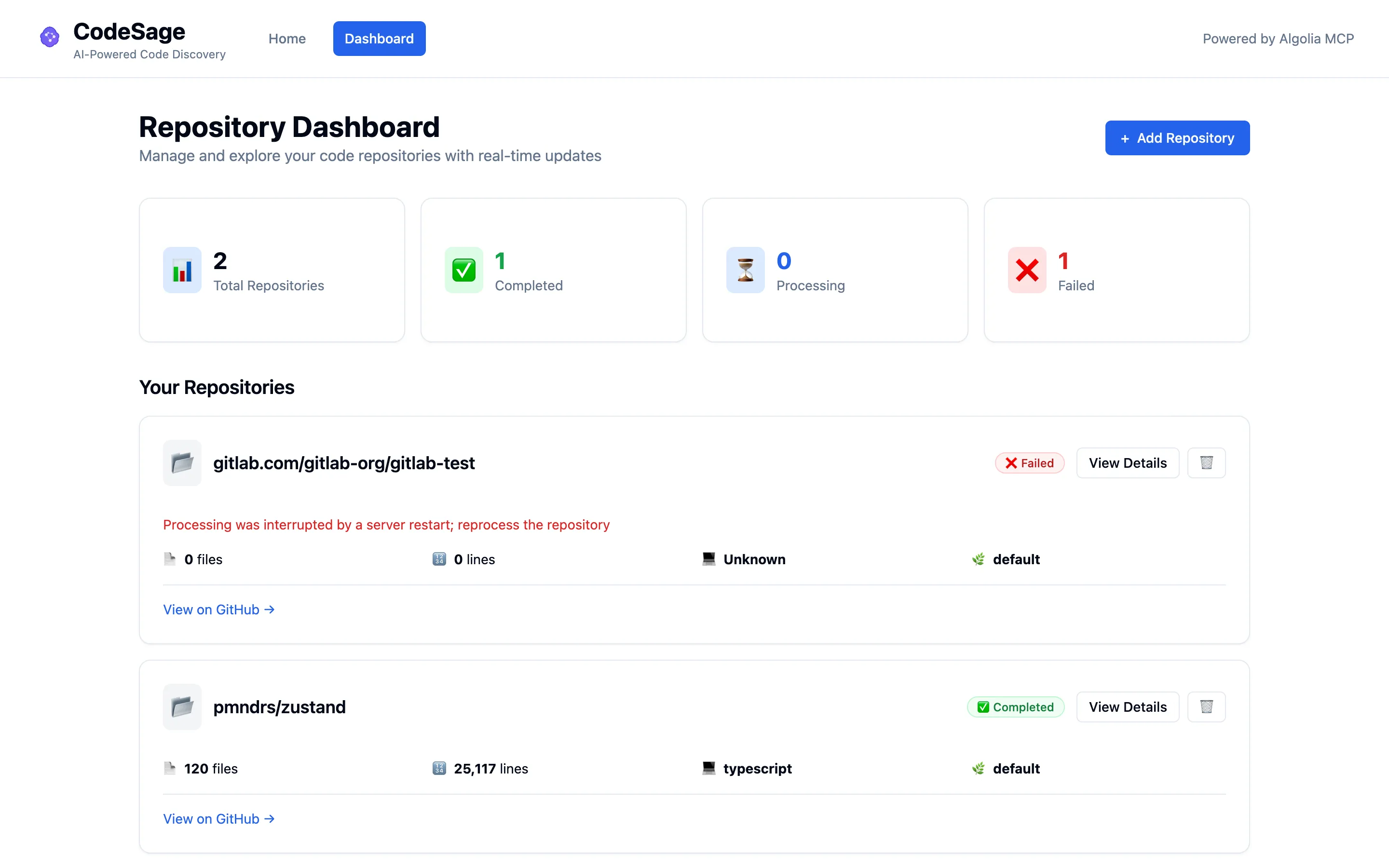
The Dashboard page lists every repository.
- Header.
Repository Dashboard,Manage and explore your code repositories with real-time updates, and an Add Repository button that goes to Home. - Four tiles.
Total Repositories,Completed,Processing(pending and processing together) andFailed. - The list. Under
Your Repositories, one card per repository, withN repository processingorN repositories processingwhen runs are active. Each card shows the name, description, status badge, View Details and a trash button (labelledDelete <name>). The body shows the files, lines, language (Unknownif none) and branch (defaultif none). A failed repository shows its reason in red. A completed repository that left files out shows itsPartially indexednote in amber. A processing repository shows a progress bar withN / M files processedand a pulsingLive updates, or an indeterminate bar before the first batch. At the bottom, a source link reads View on GitHub → for github.com and View source → for any other host. - Refreshing. While any repository is
pendingorprocessingthe list reloads every 3 seconds (every 15 seconds while the WebSocket is connected), and the page subscribes over the WebSocket to each active repository. Otherwise the list is considered fresh for 30 seconds, which picks up repositories added from another tab or by Claude. - Delete. The same dialog as on the repository page, ending
...including search indexes.The same toasts apply. A 404 is treated as success and the list refreshes. - No reprocess here. Open the repository and use its card.
| State | What you see |
|---|---|
| Loading | Loading your repositories... |
| No repositories | No repositories yet, Get started by adding your first GitHub repository to analyze with AI-powered search and Add Your First Repository |
| Load failed, nothing cached | Failed to load repositories, the error text and Try Again |
| Refresh failed, data cached | Couldn't refresh. Showing the last loaded data. above the tiles |
Not found and crashes
Section titled “Not found and crashes”- An unknown path shows
Page not found(The page you're looking for doesn't exist.) with Go home, inside the normal layout. - If a page hits a render error, the error boundary shows
Something went wrong(This page hit an unexpected error. Reloading usually fixes it.) with Reload page. The navigation stays up, and moving to another page clears the error.
Connection indicator
Section titled “Connection indicator”A small indicator sits at the bottom right of every page. It tracks the /ws connection. The socket opens only while something is subscribed: the repository page always subscribes to its repository, and the Dashboard subscribes to repositories that are still running. About a second after the last subscriber leaves, the socket closes.
| State | What you see |
|---|---|
| Connected | A small green Live pill. Click it for Real-time updates active (WebSocket connection established. You'll receive live updates.) with a Hide button. |
| Connecting | A yellow Connecting... card (Establishing real-time connection...) with Dismiss |
| Lost while subscribed | A yellow card, Live updates unavailable., with Reconnect and Dismiss. It stays through each retry until a connection succeeds. |
| Idle | Nothing, or after you open details, No active processing |
The client treats the socket as connected only after the server’s connected frame arrives. It sends a ping every 25 seconds and, if nothing came back since the last ping, closes the socket (code 4000) and reconnects. Reconnect delays start at 1 second, double up to 30 seconds and include random jitter; switching back to a hidden tab reconnects at once. The server closes with 1008 for a bad key (or a refused Host or Origin), and the client stops retrying and shows the API key rejected toast. It closes with 1013 when it already holds too many connections (200 in total, or 20 from one address), and the client retries with backoff. Frame details are in the WebSocket reference.
Toasts
Section titled “Toasts”Toasts appear at the top right, can be dismissed by clicking them or the ✕, and disappear on their own (5 seconds unless noted). Error toasts are announced to screen readers.
| Toast | Type | When |
|---|---|---|
Repository added |
Green | A repository was created |
Repository analysis complete, <name> is ready for search. |
Green, 6 s | A run reached completed while you were subscribed. Shown once per change. |
Repository partially indexed, <name>: Partially indexed: ... |
Yellow, 8 s | A run reached completed but left files out. Shown instead of the green toast. |
Repository analysis failed with the reason |
Red, 8 s | A run reached failed |
API key rejected |
Red, 10 s | HTTP 401 or WebSocket close 1008. It says to set VITE_CODESAGE_API_KEY to the key the backend expects, then rebuild or restart the frontend. It fires once, then stays quiet until a request succeeds. |
Reprocessing started, Reprocessing not started, Failed to start reprocessing |
Green, yellow, red | See Reprocess |
Repository deleted, Cannot delete while processing, Delete failed; nothing was deleted, Failed to delete repository |
Green, red | See Delete |
Troubleshooting the dashboard
Section titled “Troubleshooting the dashboard”- Every action gives
Invalid or missing API key.frontend/.envandbackend/.envhold different keys. Runmake setup, then restart Vite. Cannot reach the CodeSage server. Start the backend withmake start-backend.- No
Livepill, but progress still moves. The WebSocket isn’t connected and polling is doing the work. Click Reconnect if the card shows. Cross-origin request refusedorHost not allowed. The page’s origin or host isn’t allowed. See Security.
More fixes are in Troubleshooting.